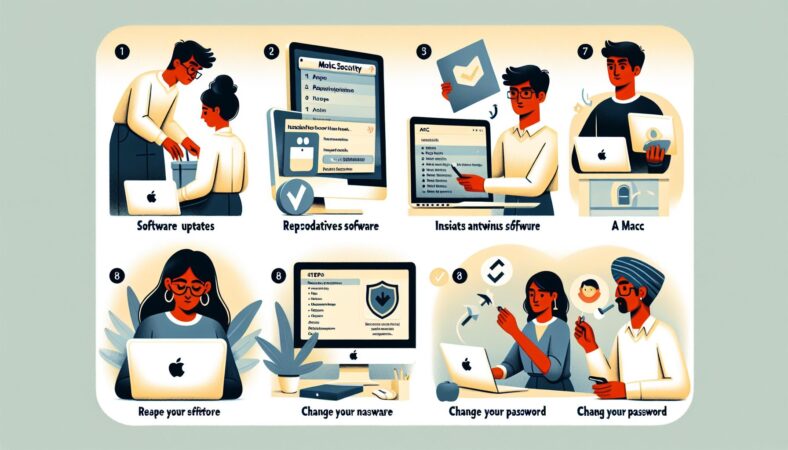
Macs are popular devices known for their design and functionality. However, just like any other device, they require security measures to keep them safe. Below are key mac security best practices to ensure your Mac remains secure from threats and vulnerabilities.
Keep Your Software Updated
One of the most effective ways to maintain Mac security is to keep your operating system and applications updated. Apple regularly releases updates that fix security flaws and improve system performance.
How to Update
- Click the Apple logo in the top-left corner of your screen.
- Select “System Preferences.”
- Choose “Software Update.”
- If updates are available, click “Update Now” to install them.
Use Strong Passwords
Using strong passwords is essential for protecting your Mac and personal data. A strong password is typically long, unique, and combines letters, numbers, and symbols.
Tips for Strong Passwords
- Avoid common words or easily guessed information like birthdays.
- Use at least 12 characters.
- Utilize a mix of uppercase and lowercase letters, numbers, and symbols.
Consider using a password manager to help you create and store strong passwords securely.
Enable FileVault
FileVault is a built-in encryption tool for macOS. It keeps your data safe by encrypting your entire hard drive. If someone gains access to your Mac, they cannot read your files without the correct password.
How to Enable FileVault
- Go to “System Preferences.”
- Click on “Security & Privacy.”
- Choose the “FileVault” tab.
- Click “Turn On FileVault” and follow the prompts.
Activate the Firewall
A firewall helps protect your Mac from unauthorized access. It acts as a barrier, monitoring incoming and outgoing connections.
How to Enable the Firewall
- Open “System Preferences.”
- Click on “Security & Privacy.”
- Go to the “Firewall” tab.
- Click “Turn On Firewall.”
For better protection, consider enabling “Stealth Mode,” which makes your Mac less visible on untrusted networks.
Install Antivirus Software
Although macOS is generally secure, malware can still affect Macs. Installing trusted antivirus software adds an extra layer of protection. Choose software that regularly updates to detect new threats.
Recommended Antivirus Options
- Norton
- Bitdefender
- Malwarebytes
Be Cautious with Downloads and Emails
Many security threats come from downloads and email attachments. Practice caution by only downloading software from trusted sources. Avoid clicking on links in unsolicited emails or messages.
Signs of Phishing Scams
- Poor grammar and spelling.
- Generic greetings like “Dear Customer.”
- Urgent messages asking for personal information.
If you receive a suspicious email, do not engage with it directly.
Use Two-Factor Authentication (2FA)
Two-factor authentication adds an extra layer of security to your accounts. It requires an additional verification step, such as a text message code or a biometric scan.
Enabling 2FA on Your Apple ID
- Go to your Apple ID account page.
- Sign in and select “Security.”
- Click “Edit” and enable “Two-Factor Authentication.”
This way, even if someone gains your password, they cannot access your account without the second verification step.
Regularly Backup Your Data
Backing up your data ensures you do not lose important files in case of device failure or data loss. Use Time Machine, the built-in backup feature in macOS, to automate this process.
How to Set Up Time Machine
- Connect an external hard drive to your Mac.
- Go to “System Preferences.”
- Click “Time Machine.”
- Select “Select Backup Disk” and choose your drive.
Time Machine regularly saves copies of your files and allows easy restoration.
Manage Privacy Settings
Ensure your privacy settings are configured correctly to restrict access to your personal information. Review app permissions and choose which apps can access your location, contacts, or other sensitive data.
Adjusting Privacy Settings
- Open “System Preferences.”
- Click “Security & Privacy.”
- Go to the “Privacy” tab.
- Review and adjust app permissions as necessary.
Be mindful of which applications you grant access to your data.
Use Virtual Private Network (VPN)
A VPN creates a secure connection when using public Wi-Fi. It encrypts your internet traffic, protecting your data from potential hackers. Use a reputable VPN service when accessing sensitive information on public networks.
Benefits of Using a VPN
- Increased privacy and security online.
- Protection against data theft on public Wi-Fi.
- Ability to bypass regional content restrictions.
Conclusion
Maintaining Mac security best practices is essential for protecting your device and personal data. Follow these guidelines to enhance your Mac’s safety and minimize risks. Regularly update your software, use strong passwords, enable FileVault, activate the firewall, and exercise caution with downloads and emails. By taking proactive steps, you can enjoy a safer Mac experience.
By implementing these strategies, you will create a more secure environment for your Mac and its data. Stay informed about emerging threats and adapt your security practices to ensure continued protection.